

Clinical Picture & SOAP Notes
TravelCard
The patient is right in front of you. Their clinical picture should be, too.
TravelCard puts the patient's spine map, safety stops, last visit, imaging and today's changes on one screen at your table, and builds the SOAP note as you talk.
The short version
What you need to know in half a minute
TravelCard brings the history, findings, contraindications and today’s changes together in one clear view at your adjusting table.
The problem
At the table you are working from memory, a chart on another screen, and whatever the patient mentions on the way in. A new fall or a past fusion can be easy to miss on a busy day.
What it does
TravelCard shows safety stops first, then the spine map, the last visit, imaging, the care plan and what the patient reported today. Press START VISIT, talk while you adjust, and the SOAP note builds.
What changes in your office
You walk in knowing what changed and what to watch for. The note is drafted from what you said in the room, ready for your review, and copied to ChiroHD for you to paste and save.
- Safety stops shown first, every visit.
- The whole spine picture on one screen.
- Today's changes reported by the patient, up front.
- The SOAP note drafts while you adjust.
In your office
How TravelCard fits into your day
- Patient checks in at the kioskThe patient enters birth month and day, and the kiosk places them at a table. They answer quick questions about any new fall, crash, injury or symptom change.
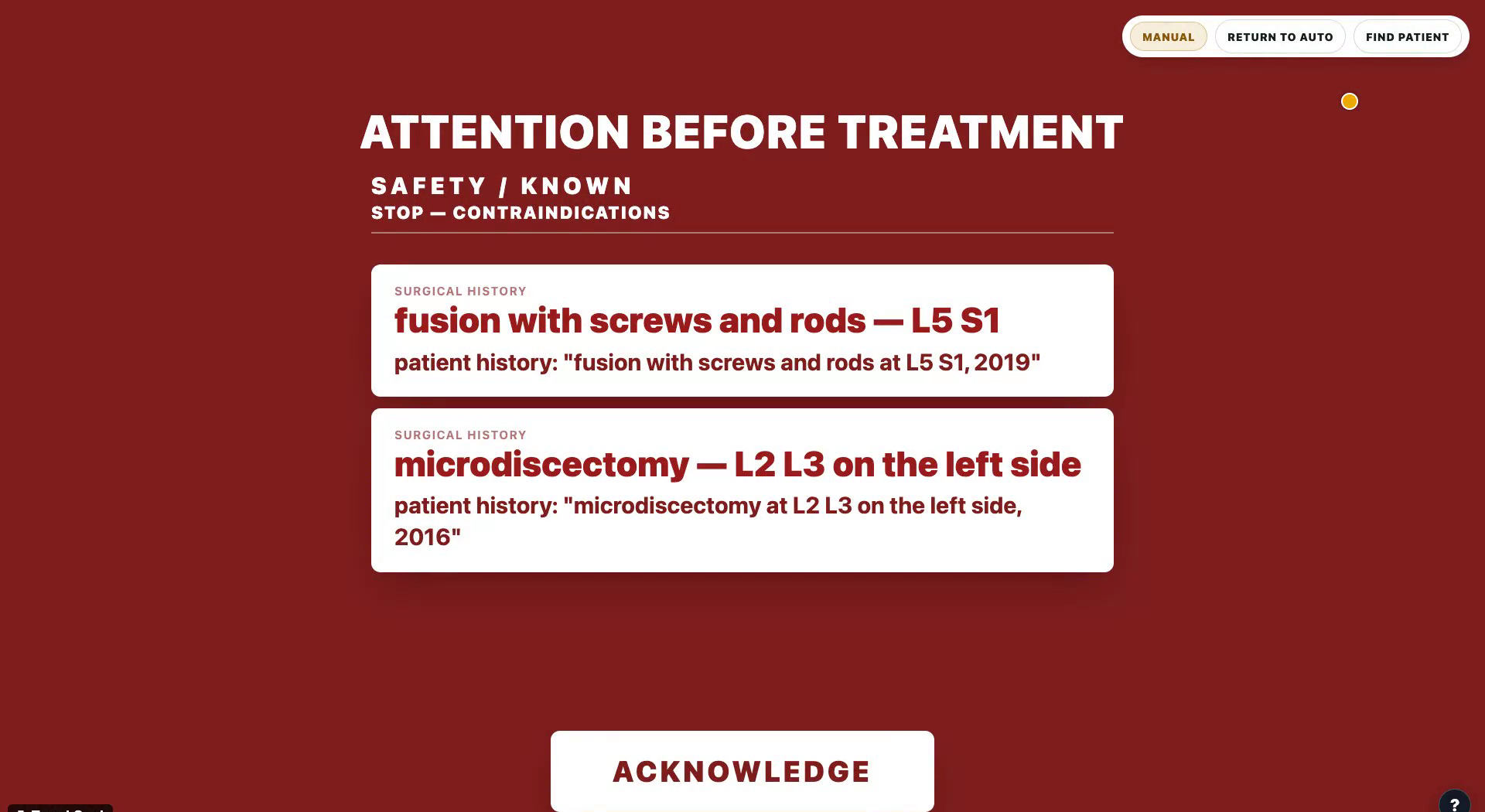
- Acknowledge the safety screenBefore treatment, contraindications, surgeries and hardware appear first. You acknowledge them, and a red SAFETY button stays on the spine map.
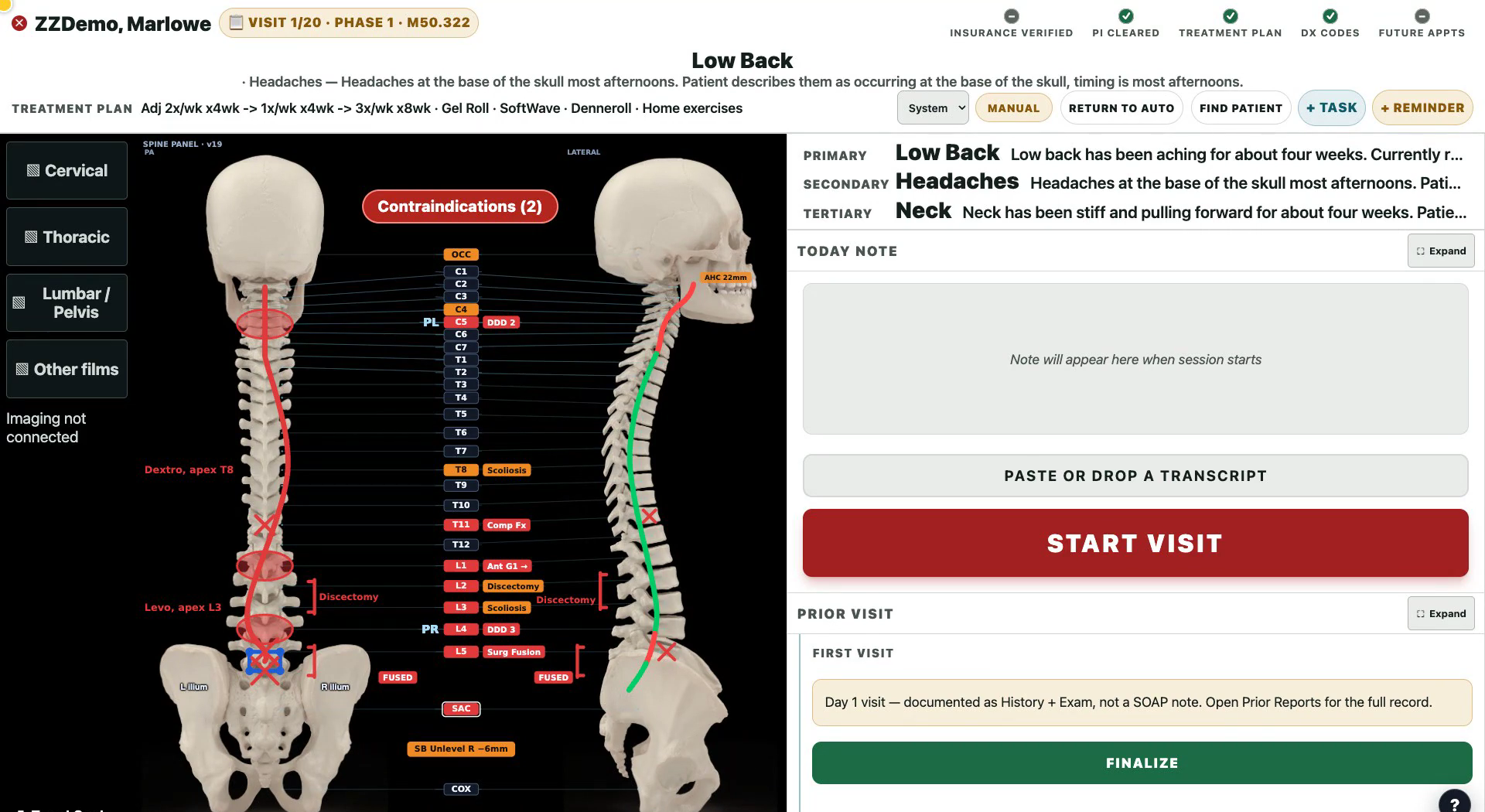
- Read the pictureThe spine map shows findings and listings. Beside it: the prior visit, imaging, today's pain compared with last visit, and where the patient is in the care plan.
- START VISIT and adjustPress START VISIT and talk as you work. CopyThat captures it and the SOAP note builds in Today Note. Press END VISIT when you are done.
- Review and finalizeRead the draft. Save it as a draft, close the visit, or complete the reviewed note. You decide what is final.
- Copy to ChiroHDOne press copies the finished note and checks that the right chart is open. You paste it into ChiroHD and press Save, then confirm it landed.
See it working
Real screens, real system
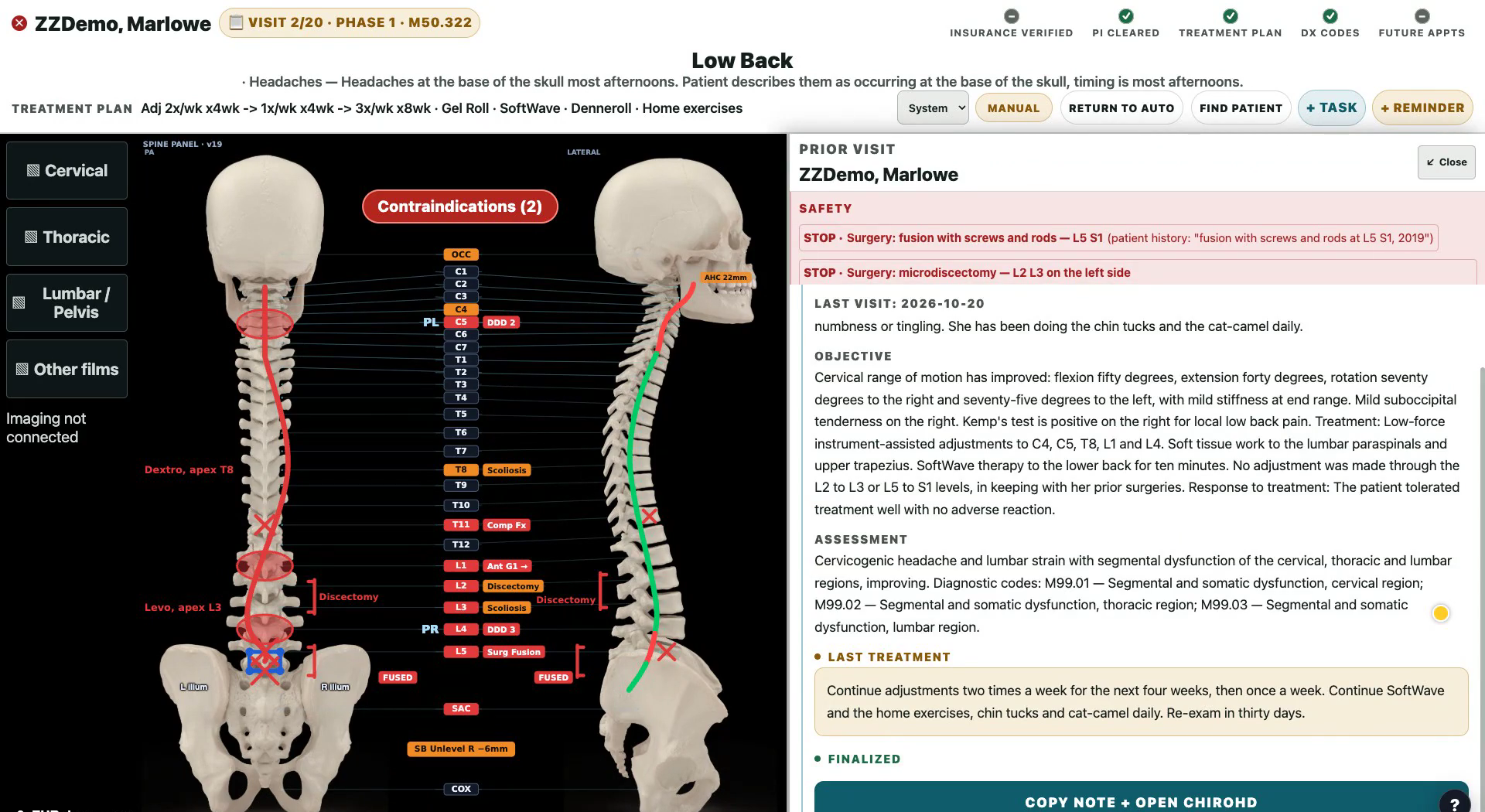
The clips and screens come from one fictional demo patient, Marlowe ZZDemo, on the doctor's own system on October 20, 2026. No real patient information is shown.
In depth
What TravelCard does for your office
Know what changed before you touch the patient
At check-in the patient answers short questions about a new fall, crash, injury or change in symptoms, in English or Spanish. Anything new shows first in red or amber, labeled patient-reported, and carries into the SOAP Subjective so you do not retype it.
Safety stops you cannot skip
Contraindications, past surgeries and hardware appear on a screen you acknowledge before treatment. After that, a red SAFETY button stays on the spine map. TravelCard supports your judgment; it does not diagnose or prescribe an adjustment.
The whole picture in one view
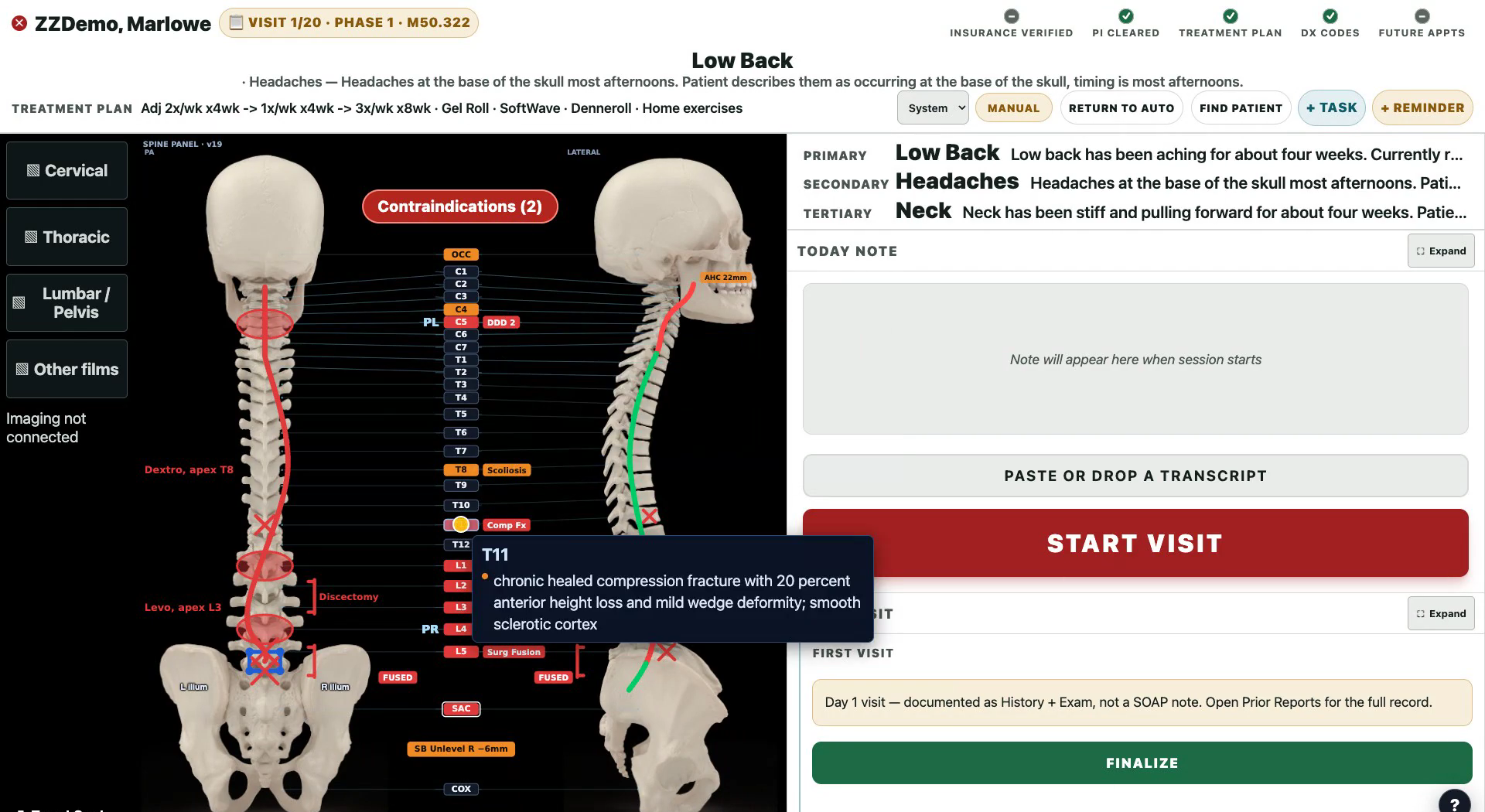
The spine map shows findings and listings on a skeleton. Point at a level for details, or click it to edit. Beside it are the prior visit, the X-rays themselves, today's pain against last visit with a trend arrow, and where the patient stands in the care plan.
Talk while you adjust; the note drafts itself
Press START VISIT and speak as you work. CopyThat captures it, and the SOAP note builds in Today Note. At END VISIT you save a draft, close the visit, or complete the reviewed note. The note is yours to read and approve.
Copy to ChiroHD with a check
For a finished note, one press copies it and checks that the right patient's chart is open in ChiroHD. You paste and press Save in ChiroHD, then a second press confirms it landed. It does not write into ChiroHD on its own.
The minutes at the table are the heart of chiropractic care. Everything you know about that patient should be in front of you then, so your attention stays on your hands and the person under them.
The full list
Everything TravelCard does today
- One table-side screen: spine map on the left, Today Note in the center, prior visit, imaging and today's subjective on the right.
- Spine map with findings and listings drawn on a skeleton; point at a vertebra for details, click to edit.
- Pre-treatment safety screen for contraindications, surgeries and hardware that the doctor must acknowledge.
- A red SAFETY button that stays on the spine map after acknowledgment.
- Kiosk check-in by birth month and day that places the patient at a table.
- Patient-reported new events (fall, crash, injury, symptom change) in English and Spanish, labeled patient-reported and carried into the SOAP Subjective.
- Today's subjective: pain today against last visit with a trend arrow, check-in answers and a new-complaint flag.
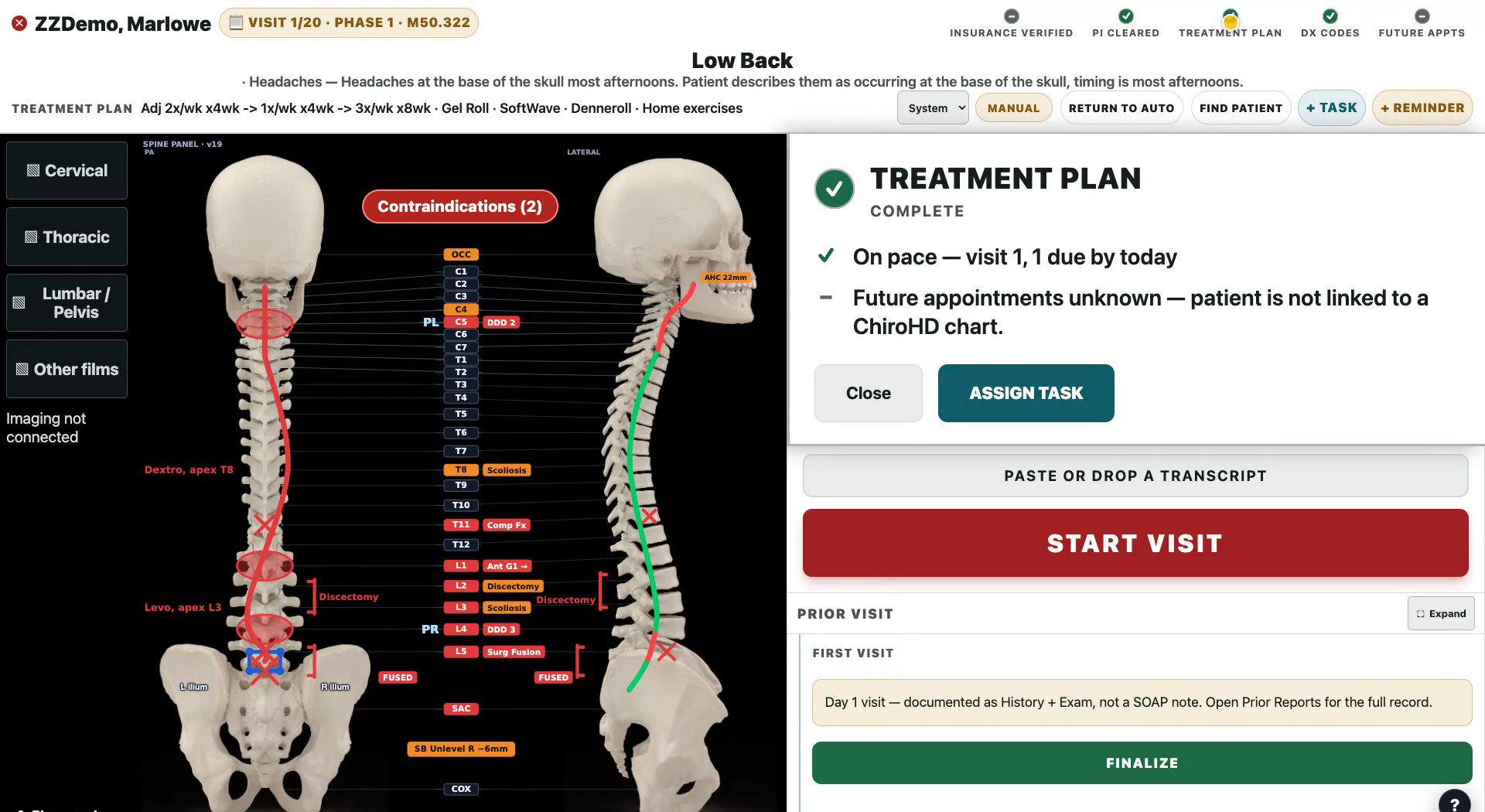
- Status dots, such as insurance verified and care plan, with a panel explaining each one.
- Care plan line showing where the patient is in the plan.
- Imaging panel with access to the actual X-rays.
- START VISIT and END VISIT record through CopyThat, and the SOAP note builds in Today Note.
- End-of-visit choices: save as draft, close this visit, or complete the reviewed draft.
- Copy a finalized note to ChiroHD: copies, checks the open chart, you paste and save, then it verifies.
- Reminders and doctor tasks from the card, with an editor for task types.
- Follows the patient open in ChiroHD automatically, or search for a patient manually.
- Hot links bar, theme control and screensaver.
Coming
- SALT: one press to save a same-as-last-time note.
- A covering-doctor view for associates and locums seeing a patient for the first time.
Who built it
ChiroUnchained was built by a practicing chiropractor. Dr. Brett Moss, DC, has been in practice since 1998, is a second-generation chiropractor, and built these tools in his own office, to fix the problems he lived with every day.