
History & Exam Documentation
CopyThat
The patient talks faster than you can write. You miss details trying to keep up, then struggle to read your own notes. Or you dictate and get a long narrative that buries your findings in a wall of words. You keep rereading it to find what you need, and may never notice what’s missing.
CopyThat records your history and exam by voice, asks about anything unclear while the patient is still there, and gives you an organized note to review and approve.
The short version
What you need to know in half a minute
CopyThat speaks chiropractic, capturing your history and exam as you work and asking case-specific clarification questions when you stop recording, while the patient is still in the room. From PI to neuropathy, the visit type and patient type you select guide the questions and reports. Your findings are clear, familiar, ready for your review and editable afterward. And best of all, no chicken scratch to decipher later.
The problem
You examine, talk and write at the same time. Details slip. Dictation turns into a long narrative you have to dig through, and nobody tells you what is missing until a report or an attorney asks.
What it does
You press RECORD and work. CopyThat sorts what you say into history and exam sections, then asks short, case-specific questions about gaps. You answer in a few words, review, and press APPROVE & SEND.
What changes in your office
The note is finished in the room, not at night. Findings land in familiar sections you can scan. Questions get answered while the patient is still there, and the approved note goes straight to ReportForge for the reports.
- Talk to your patient, not your clipboard.
- Gaps caught while the patient is still in the room.
- Findings sorted into sections you already know.
- One approval sends the note on to your reports.
In your office
How CopyThat fits into your day
- Pick the patient and visitChoose the patient, then the visit type: New Patient, Re-Exam, SOAP or Neuropathy. Patient type (PI, Medicare, insurance or self-pay) is set in its own pop-up.
- Glance at the intakeThe patient's own intake answers sit on the left, read-only, so you can see what they reported before you start.
- Press RECORD and examineTake the history and do the exam out loud. Your words appear on screen as you speak. PAUSE and STOP are one press away.
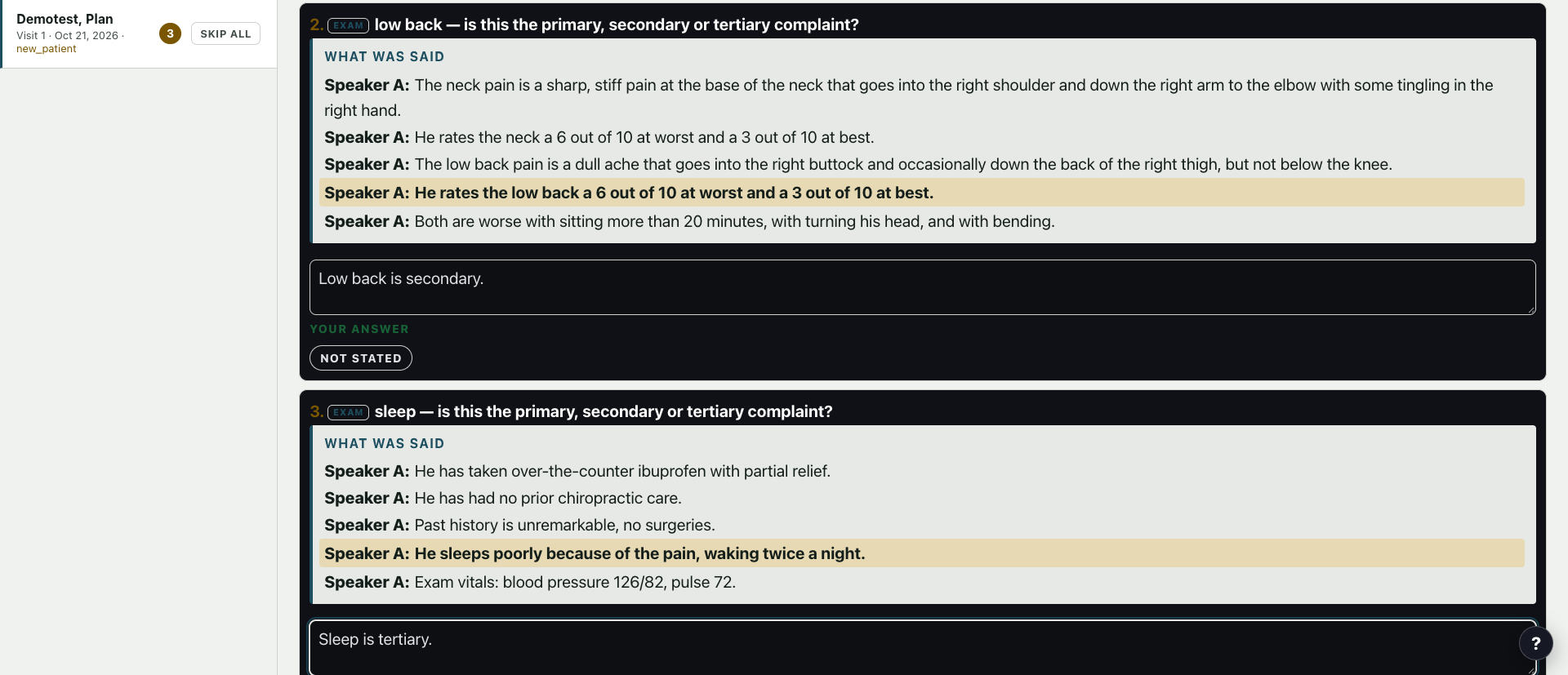
- Answer the clarification questionsAfter you stop, CopyThat shows short questions about anything unclear or missing, with the sentence you said beside each one. Answer, skip, or mark it not stated.
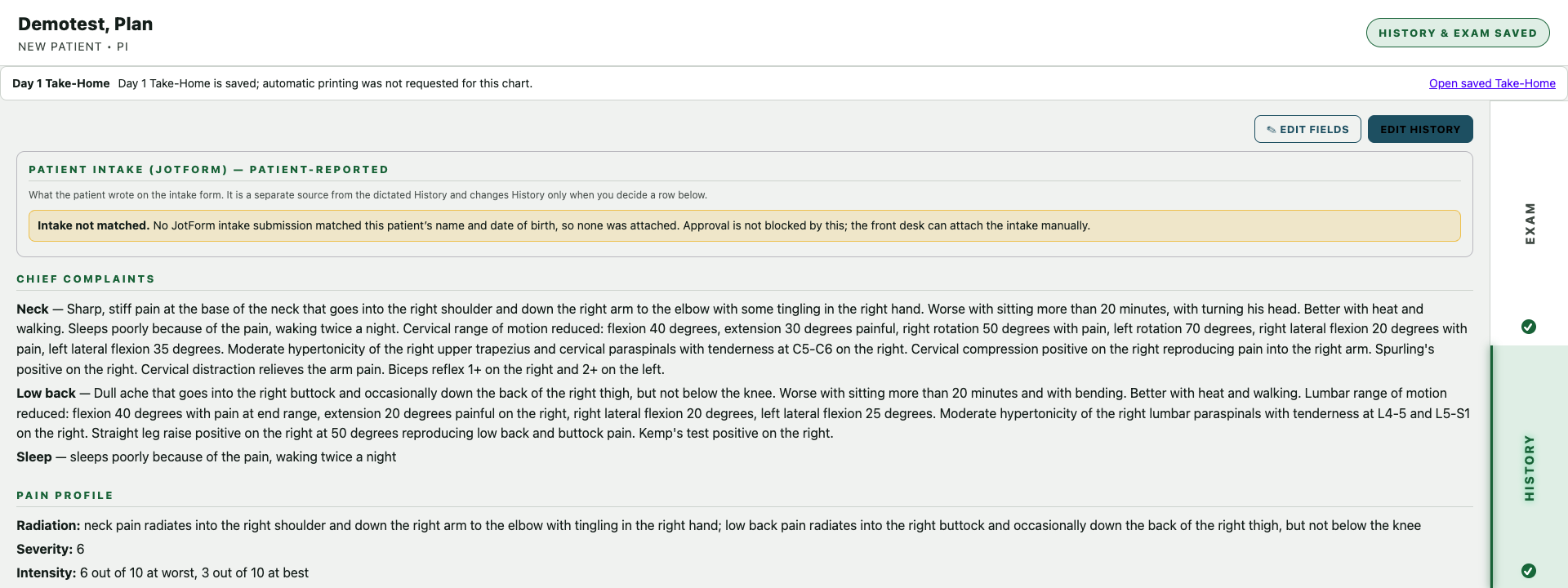
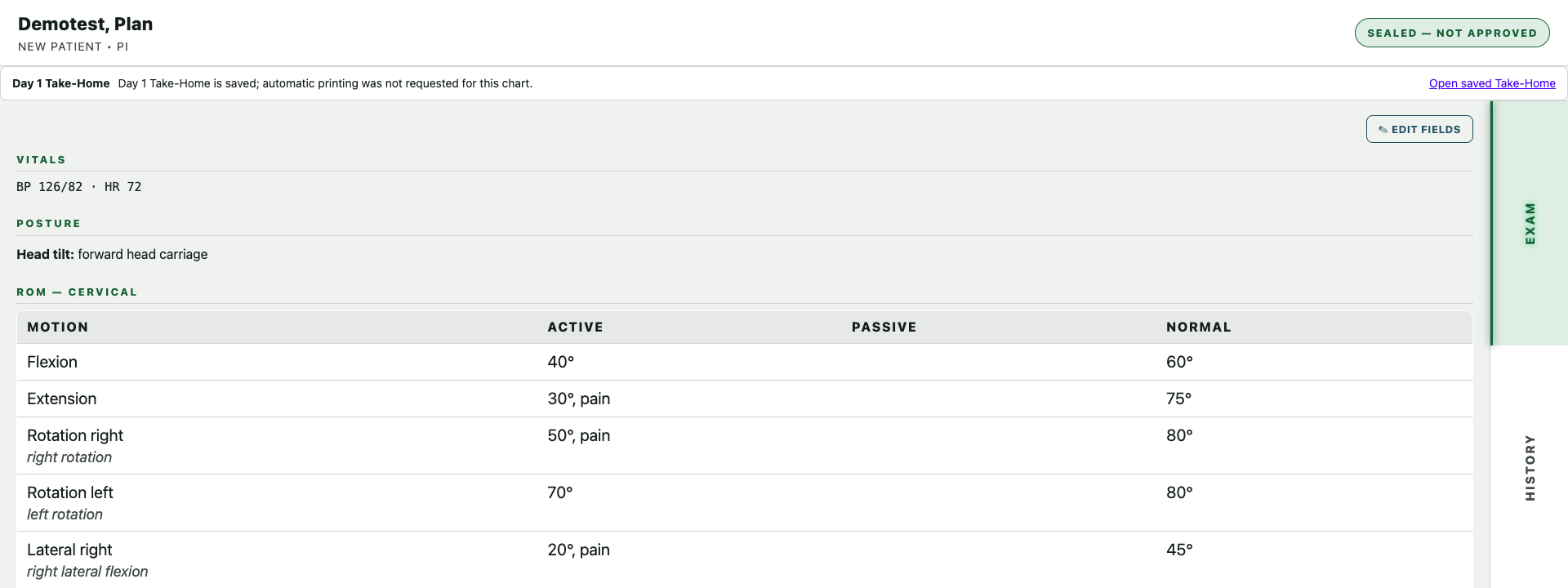
- Review the History and Exam tabsRead the organized note: complaints, pain profile, range of motion, reflexes, dermatomes, myotomes, orthopedic tests, palpation, listings. Edit anything that is not right.
- APPROVE & SENDYour approval hands the note to ReportForge, which builds the reports from it. You can still edit the saved note later.
See it working
Real screens, real system
These screens and the clip come from one fictional demo patient, Plan Demotest, recorded on the doctor's own system on October 21, 2026. No real patient information is shown.
In depth
What CopyThat does for your office
Keep your eyes and hands on the patient
Press RECORD and work the way you already do. CopyThat captures the history and exam as you speak and shows the words live, so you know it is listening. If you would rather paste a transcript, PROCESS TRANSCRIPT does the same job.
Findings in the sections you already use
Your words are sorted into chief complaints, pain profile, range of motion, reflexes, dermatomes, myotomes, orthopedic tests, palpation, listings and muscle findings. You scan a familiar layout instead of rereading a narrative to find one number.
Questions asked while the patient is still there
When you stop recording, CopyThat asks short questions about what is unclear or missing for this case, and shows the sentence you said beside each one. You answer in a few words, skip it, or mark it not stated. The gap is closed before the patient walks out, not weeks later when a report is due.
The visit type shapes the visit
New Patient, Re-Exam, SOAP and Neuropathy visits each have their own path, with SoftWave and neuropathy add-ons when you need them. A personal-injury patient is marked PI, and that case type carries through to the questions and the reports.
Red flags and contraindications in front of you
If a red-flag symptom comes up, a pop-up asks you to acknowledge it and continue the visit or refer out. Contraindications such as a fusion show up as attention cards. CopyThat supports your clinical judgment; it does not diagnose or decide care.
One approval, and the reports start from your note
APPROVE & SEND hands the approved note to ReportForge, which builds your report package from it. You can edit the saved note afterward, and your prior History and Exam reports stay a tab away with COPY and PRINT.
A chiropractic exam is skilled work: what you see, feel and test in a few minutes carries the whole case. Your notes should capture that work as completely as you performed it, without taking your attention off the person on the table.
The full list
Everything CopyThat does today
- Records the history and exam by voice with RECORD, PAUSE and STOP, showing your words live on screen.
- Visit types: New Patient, Re-Exam, SOAP and Neuropathy, with SoftWave, Neuropathy Add-on and Exam Mode toggles.
- Patient type (PI, Medicare, insurance or self-pay) chosen in a Patient Type pop-up.
- Shows the patient's intake answers in a read-only panel beside the clarification area.
- Asks case-specific clarification questions after you stop recording, showing what was said; answers are typed and saved.
- Organizes the note into History and Exam tabs with standard chiropractic sections for review.
- Lets you edit the saved note afterward, including SOAP notes.
- APPROVE & SEND hands the approved note to ReportForge to build the reports.
- Shows prior History Report and Exam Report tabs with COPY and PRINT.
- Red-flag symptom pop-up: acknowledge and continue the visit, or acknowledge and refer out.
- Contraindication alerts, such as fusion, shown as attention cards.
- Paste a transcript instead of recording, or recover a visit from a saved transcript or audio.
Coming
- A red banner when the microphone stops sending audio for 20 seconds, so a silent recording is caught right away.
Who built it
ChiroUnchained was built by a practicing chiropractor. Dr. Brett Moss, DC, has been in practice since 1998, is a second-generation chiropractor, and built these tools in his own office, to fix the problems he lived with every day.